


Collate printing refers to a printing method that arranges pages in the correct order when printing multiple copies, so each printed document set comes out complete and ready to use. In opposed of printing all copies of one page first, the printer produces full document sets in sequence. One can easily understand why this feature matters if they have ever printed a multi-page document and ended up with a messy stack of pages that needed endless sorting. Collation removes that extra step completely. This amazing and simple feature ensures that each copy of your document is printed exactly the way it was supposed to be printed, in the correct order from the first page to the very last page. Here you will learn everything about this its a complete Collated vs Uncollated Guide.
In real time, this small feature can significantly reduce your document handling time, especially when you are dealing with multiple copies of large documents.
Introduction to collating
Most people notice the “collate” option in their printer settings, but don’t really think about it. It’s one of those features that seems technical, yet it plays a very practical role in everyday printing. Understanding what collating means when printing becomes especially important when you are printing reports, assignments, presentations, or any document with multiple pages. Without using the right settings, you could end up spending unnecessary time organizing pages manually.
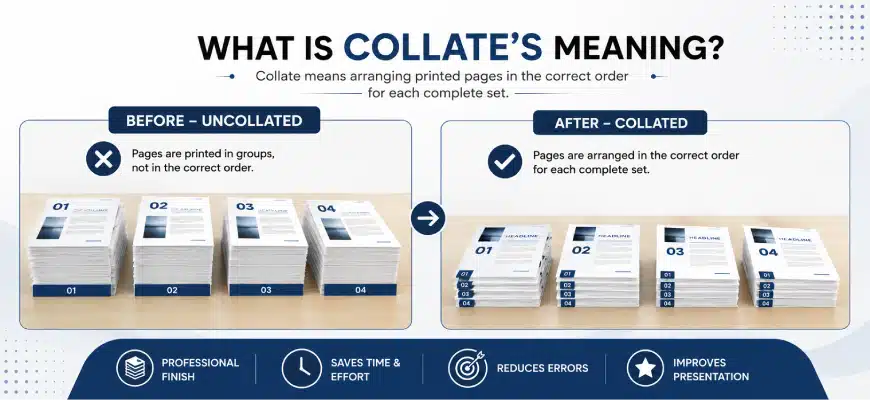
This guide is designed to give you a complete understanding of collate printing, from its basic definition to real-world applications. By the end, you will know exactly when to use it, how it works, and why it’s considered essential in both personal and professional environments.
What Does Collate Mean in Printing?
As discussed earlier in this Collated vs Uncollated Guide, collating means arranging pages in a specific sequence so that each printed copy is a complete set that is neatly ordered and ready to use.
Just imagine that your printer is organizing a document for you before it even starts printing. Instead of printing stacks of the same pages, the printer ensures that a full set of documents is printed from start to finish before moving on to the next copy.
Real Life Example of Collated Printing
Take a real-world example to completely understand this. Let’s say you have a 10-member board meeting in an hour, and the 15-page report that needs to be at the desk of each member is still not finalized. At the very last moment, you have obtained some critical numbers that are needed for the report. The moment you get your report finalized, you hit the print button without collation. Your printer printed 10 copies of page 1, then 10 copies of page 2, and so on. The board members have started to arrive in the conference room, and you are still manually sorting and assembling 15 complete reports, which is not only time-consuming but also increases the chances of errors while compiling them.
If the collation option was enabled, the printer would have automatically produced 15 complete reports, each in the correct order (from page 1 to 15). That is the core reason this feature is widely used in offices, schools, and businesses.
What Is Collate in Printing (Simple Explanation)
Collate printing ensures that each document is printed as a complete, properly ordered set without requiring manual sorting. In simpler terms, it’s like having an assistant who organizes your documents for you as they are being printed.
This becomes especially useful when:
- You are printing large reports
- You need multiple copies quickly
- Accuracy and order matter
Even for smaller tasks, using the collate option can make your workflow smoother and more efficient.
Collated vs Uncollated Guide to printing
The key difference between collated and uncollated printing is the way pages are arranged while printing multiple copies. Thanks to collated printing, complete document sets are produced, whereas uncollated printing stacks the same page numbers together.
Feature |
Collated Printing |
Uncollated Printing |
| Output | Complete sets | Grouped pages |
| Best For | Reports, documents | Bulk printing |
| Efficiency | High | Lower |
| Manual Sorting | Not required | Required |
To make the example clear, imagine printing a 3-page document three times:
- Collated:
(1-2-3) , (1-2-3) , (1-2-3) - Uncollated:
(1-1-1) , (2-2-2) , (3-3-3)
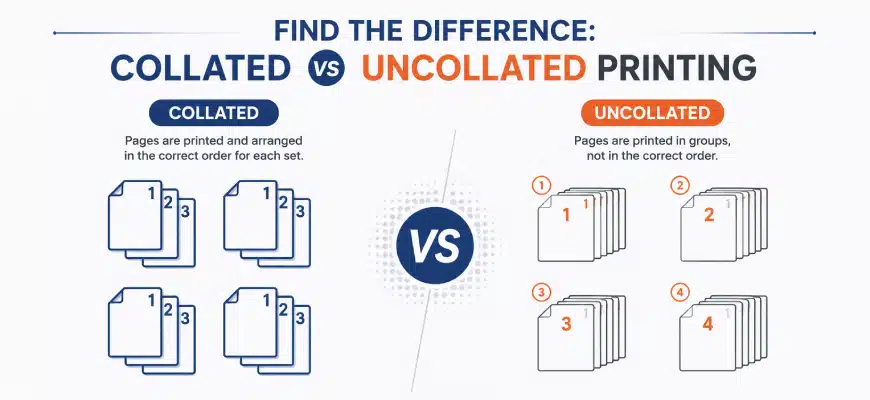
In most real-world situations, collated printing is the better option because it produces documents that are ready to use. Uncollated printing is only useful in specific cases, such as printing large quantities of single-page materials like flyers or brochures.
How Does Collate Printing Work?
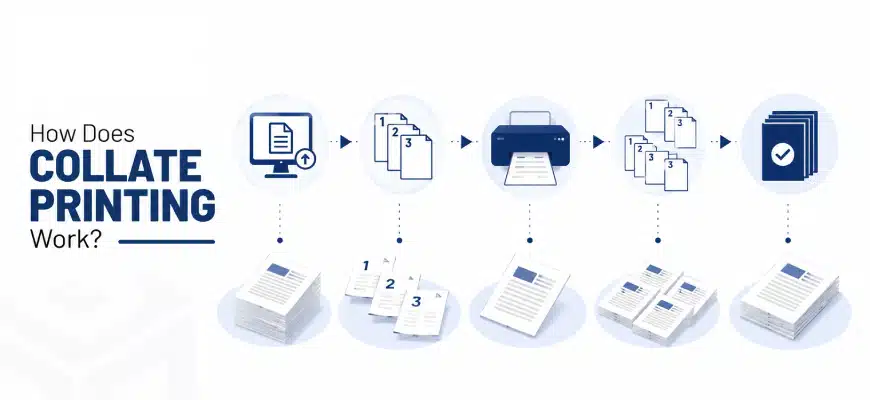
Collate printing works by instructing the printer to print one complete document at a time instead of printing all copies of each page separately. Behind the scenes, your printer processes the document in cycles. When collation is enabled, it prints page 1, then page 2, then page 3, and so on, completing one full set before starting the next.
This process continues until all copies are printed
Modern printers and software applications are designed to handle this automatically, but the option must be selected manually. Some advanced printers even have built-in collation systems that make the process faster for large print jobs.
How to Use Collate Option When Printing (Windows, Mac & Printer) (Step-by-Step)
To collate when printing, simply enable the “Collate” option in your print settings so each copy is printed as a complete, properly ordered document. While this sounds straightforward, many users overlook where exactly this setting is located or assume it’s enabled by default. In reality, the placement of the collate option can vary depending on your device, operating system, and application.
Getting this step right is important, especially when printing large documents, because one wrong setting can lead to incorrectly ordered pages and wasted time.
Platform |
Steps |
Tip |
| Windows | 1. Open your document (Word, PDF, etc.)
2. Press Ctrl + P 3. Select the “Collate” option in the drop-down list 4. Enter the number of copies 5. Click Print |
If you don’t see the option, check under “More Settings” or “Preferences.” |
| Mac | 1. Open your document
2. Press Command + P 3. Expand print settings 4. Enable “Collated.” 5. Select the number of copies 6. Print your document |
Make sure settings are expanded to view all options |
| Printer Interface (Advanced Printers) | 1. Access the printer display panel
2. Navigate to print settings 3. Enable Collate from device options |
Useful when printing directly from a USB or a network |
| Pro Tip | Always double-check whether collation is enabled in both the application and printer settings. If it’s disabled in one place, the printer may ignore the command. | |
Why This Matters
A properly configured collate setting ensures:
- Correct page sequence
- No manual sorting
- Faster document handling
It’s a small step, but it prevents big issues later.
When Should You Use Collated Printing?
You should use collated printing whenever you are printing multiple copies of a multi-page document set that needs to remain in order. At first glance, it might seem like something you only need occasionally. But in reality, collation becomes essential anytime document structure matters.
Think about it, if someone receives a report with pages out of order, it immediately looks unprofessional and confusing. That’s why knowing when to use collate is just as important as knowing how to use it.
Ideal Use Cases
Collated printing is best suited for:
- Office reports: Ensures each copy is presentation/distribution ready
- Academic assignments: Keeps pages organized for submission
- Business proposals: Maintains professional formatting, custom packaging solutions
- Training manuals: Help users follow the content step by step
- Client documents: Avoids miscommunication due to misplaced pages
When You Don’t Need It?
There are situations where collation isn’t necessary:
- Printing single-page documents
- Bulk printing of flyers or posters
- When pages are meant to be separated
In these cases, using uncollated printing may actually be faster.
Real World Insight
In most office environments, using collated printing is almost always the default choice. It reduces manual work and ensures consistency across all printed materials.
Why This Matters
Choosing the right printing method affects:
- Efficiency
- Accuracy
- Professional presentation
Using collated printing at the right time ensures your documents are always ready to use, without extra effort.
Why Use Collate Printing? (Key Benefits)
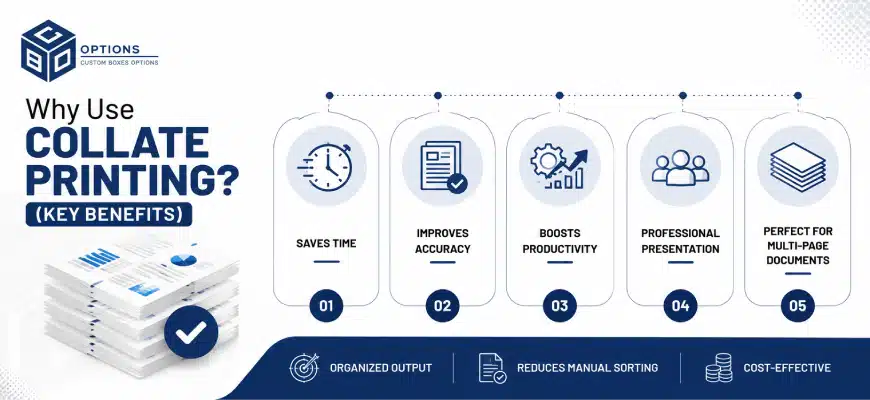
Here are the main benefits:
- Saves Time
You don’t need to manually sort pages after printing.
- Reduces Errors
Prevents pages from being mixed up or misplaced.
- Improves Workflow
Especially useful in busy environments like offices.
- Professional Output
Documents come out clean, organized, and ready to use.
Common Collate Printing Problems and Their Solutions
Problem |
Cause |
Solution |
| Why is the collate option not working? The The The | Collate option is not enabled in both the application and printer settings, or is only enabled in one of them. | Ensure to turn the collate option “on” in both the application (e.g., Word/PDF) and the printer settings |
| Why is the printer not collating properly? | Your printer drivers may be outdated or have an incorrect configuration | Update printer drivers and recheck all print settings before printing |
| Why is the collate option missing? | The printer does not support hardware collation | Use software-based collation through your computer or application |
How to Collate Documents Efficiently?
To collate documents efficiently, always verify your print settings, run a small test print, and use features like print preview and duplex printing to avoid errors, especially when handling large volumes. When you are printing multiple copies of multi-page documents, small mistakes can quickly turn into big problems, such as wasted paper, incorrect page order, or the need to reprint everything. That is why taking a few extra seconds to check your setup can make a significant difference.
In real-world scenarios, especially in offices or busy environments, efficient collation isn’t just about turning on a setting; it’s about ensuring the entire printing process runs smoothly from start to finish.
Tip |
Key Actions |
Why It Matters |
| Use Print Preview | Check page order, layout, and ensure no pages are missing or misaligned | Helps catch errors before printing and avoids reprinting entire documents |
| Keep Printer Drivers Updated | Update printer software regularly | Prevents issues like collate not working, incorrect sequencing, and printing errors |
| Combine with Double-Sided (Duplex) Printing | Enable duplex printing along with collation | Ensures correct page order on both sides and gives a more professional finish while saving paper |
| Test Before Bulk Printing | Print one test copy and check order, alignment, and formatting | Avoids costly mistakes when printing large volumes |
| Confirm Settings in Both Places | Enable collating in both the application (Word/PDF) and printer settings | Ensures the printer follows the correct instructions and prevents ignored commands |
| Pro Tip | If you regularly print large documents, saving a preset with collate + duplex enabled can speed up your workflow and reduce repetitive setup. | |
Collate Printing vs Manual Sorting
Collate printing is significantly faster, more accurate, and far more efficient than manually sorting printed pages. Instead of handling stacks of paper yourself, the printer automatically organizes each document into complete, ready-to-use sets.
Aspect |
Manual Sorting |
Collate Printing |
| Time Efficiency | Takes considerable time, especially for large documents | Saves time by automatically organizing pages |
| Accuracy | Higher risk of missing or disordered pages | Ensures consistent and accurate document sets |
| Effort Required | Requires additional manual effort after printing | Fully automated process with minimal effort |
| Workflow Impact | Slows down productivity | Improves workflow efficiency |
| Reliability | Subject to human error | Highly reliable and consistent |
In most cases, using the collate option isn’t just convenient, but it’s the smarter and more reliable way to handle multi-page printing tasks.
Final Thought
Collate printing is a small yet powerful feature as it has a significant impact on how efficiently and accurately you manage the printing of your documents. Automatic arrangement of pages into complete and properly ordered sets eliminates the need for manual sorting, reduces the risk of errors, and saves valuable time, especially when one is dealing with multi-page documents or large print jobs.
Whether you are printing assignments, reports, or business materials, using the collate option ensures your documents are ready to use at the very moment they come out of the printer. Over time, this simple setting becomes an essential part of a smooth and professional printing workflow, making it one of the easiest ways to improve productivity without adding extra effort.
Quick Recap of this Collated vs Uncollated Guide
- Collate = arrange pages in order
- Collated printing = complete document sets
- Uncollated printing = grouped pages
- Best for multi-page documents
- Saves time and reduces errors
Frequently Asked Questions (FAQs)
What does collate mean when printing?
Collate printing means arranging pages in the correct order when printing multiple copies so each document comes out as a complete set. Instead of grouping identical pages together, the printer outputs full documents in sequence.
What is the difference between collated and uncollated printing?
Collated printing produces complete document sets in order, while uncollated printing groups identical pages together.
For example, collated printing gives you full reports (1-2-3, 1-2-3), whereas uncollated printing gives you stacks of the same pages (1-1-1, 2-2-2). Collated is best for multi-page documents.
Should I print collated or uncollated?
You should choose collated printing when printing multiple copies of multi-page documents that need to stay in order.
Uncollated printing is only useful when page order or page number does not matter, such as printing single-page flyers in bulk.
How do I turn on collate when printing?
To turn on collate, open the print menu (Ctrl + P or Command + P), select your printer, and enable the “Collate” or “Collated” option before printing.
Why is my printer not collating properly?
This usually happens if the collate option is not enabled in both the application and printer settings or if your printer drivers are outdated. Make sure to check both settings and update your drivers if needed.